Purpose
Learn how to initiate an internal purchase requisition (indent) for required materials, assign delivery warehouse, item quantities, and understand the workflow transition before submitting for approval.
Training example
Requirement ID 10140; Requirement For: Product; Requirement Type: Product Requirement; Organization: SunONE Technologies Pvt. Ltd.; Warehouse: Pune Main Warehouse; Currency: INR; Line item: GZ-2644, Quantity: 1.
Instructions
- Navigate to Procurement / SCM > Requirements.
- Review existing requisitions to avoid duplicate demand requests.
- Click New Requirement / Create Requirements.
- Set Requirement For to
Product. - Enter requisition description:
Sample training requirement for one existing demo product. - Select destination warehouse (
Pune Main Warehouse), Organization (SunONE Technologies Pvt. Ltd.), Currency (INR), and Organization Unit (Domestic). - Click Save. Note the generated Requirement ID
10140in statusCreated. - Click the Items tab to attach product items to the requisition.
- Add product
GZ-2644with Quantity1. - Inspect the saved line item: verify product ID, quantity, and observe the item UOM field. Stop before submitting for approval if UOM is blank.
Expected result
Requirement 10140 is generated in Created status with linked line items. No commitment or purchase order is posted.
Downstream effects
Requisitions represent internal demand. Approved requisitions are converted to Purchase Orders. Incomplete line specifications (such as missing UOM) intentionally block downstream PO generation.
Related guides
Continue to 22000: Create and Approve a Purchase Order or view 20000 with screenshots.
Instructions
- Search requirements by status to confirm open indents before adding demand.
- Fill the requisition header with training details, destination warehouse, and INR currency.
- Save to generate Requirement ID
10140inCreatedstatus. - Navigate to the Items tab and add
GZ-2644with Quantity1. - Inspect the line items to verify unit of measure before submitting for approval.
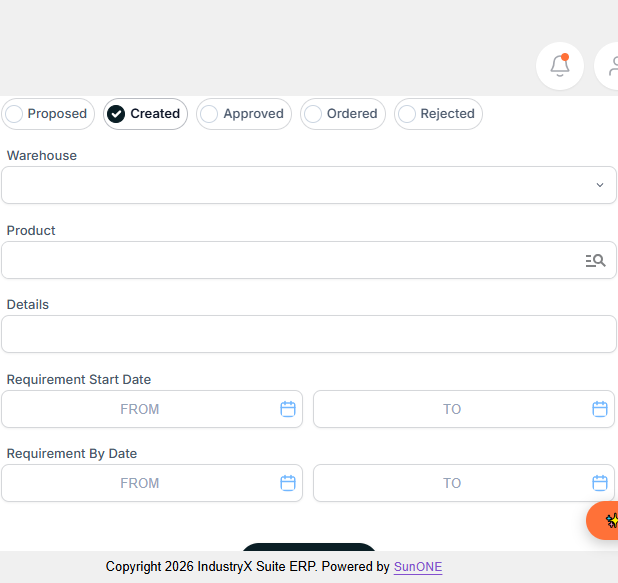
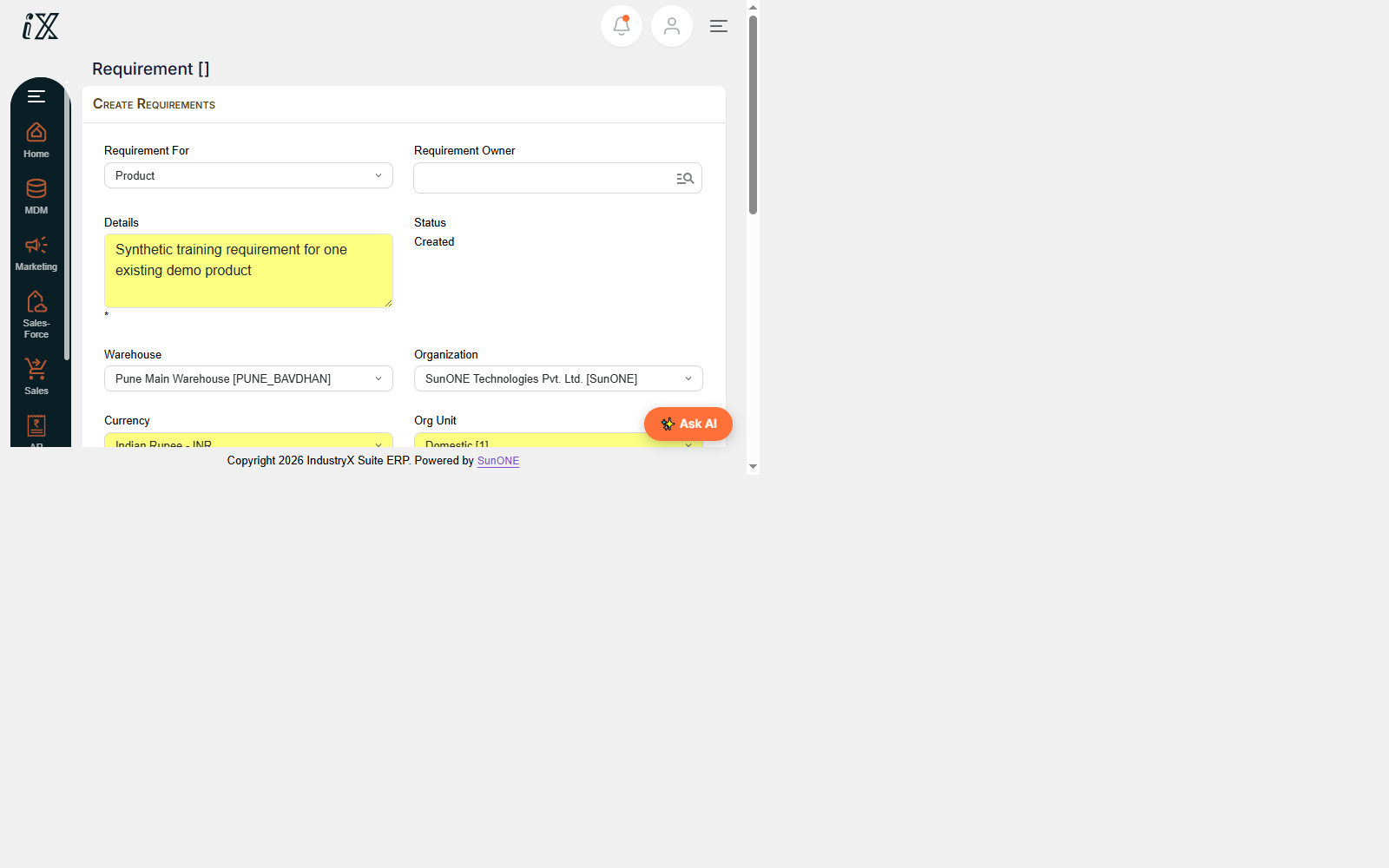

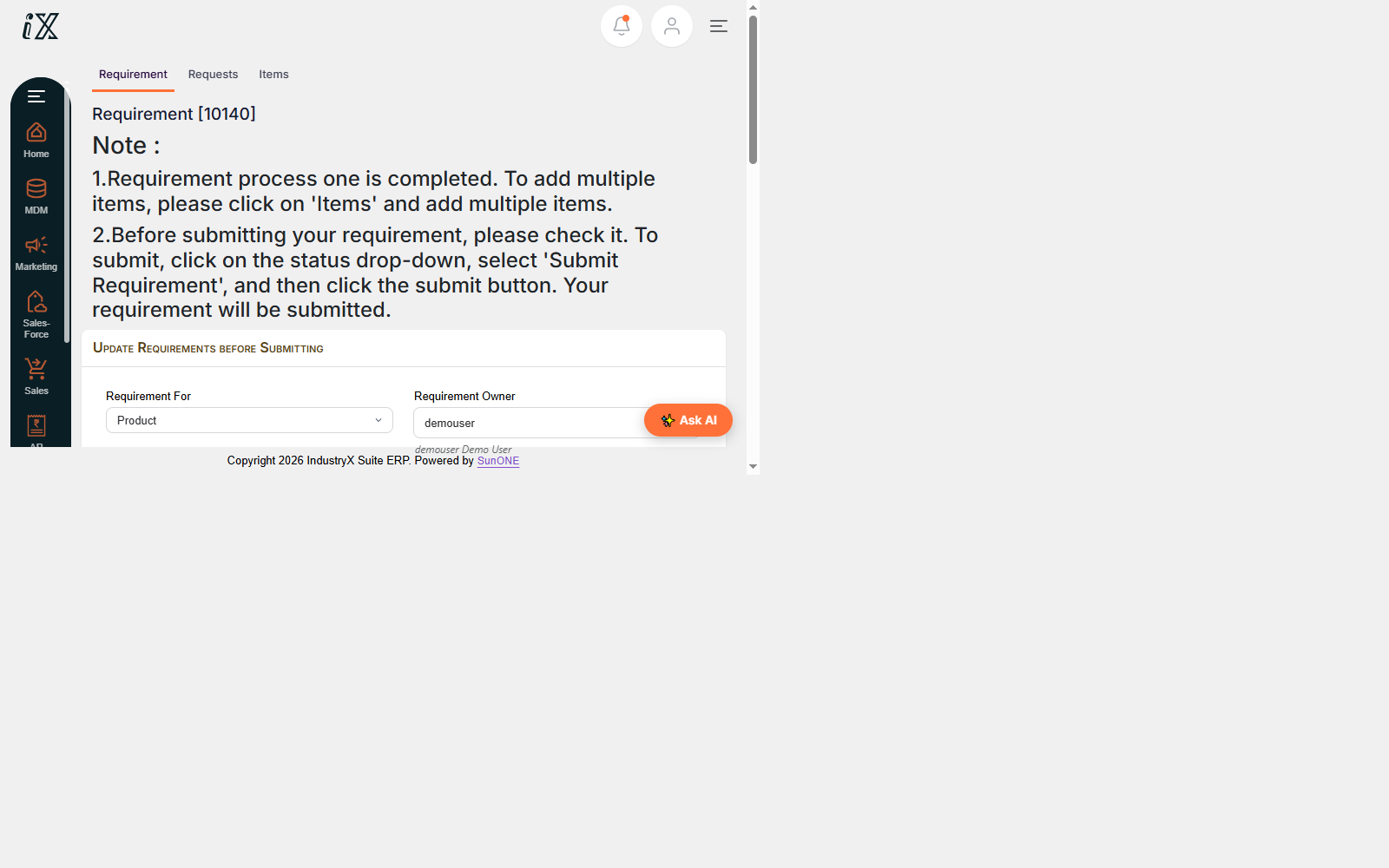
demouser and instructions for item addition.
Downstream effects
Requirement 10140 remains in Created status. It must not be converted to PO until the product master UOM blocker is resolved.
Related guides
Read text instructions or proceed to 22000: Create and Approve a Purchase Order.