
Purpose
Verify the organization's warehouse setup, inspect warehouse parameters (facility type, ownership, weight units), and review inventory storage locations used across goods receipt, stock transfers, picking, and fulfillment.
Instructions
- Open the Warehouse module from the navigation sidebar or core module menu.
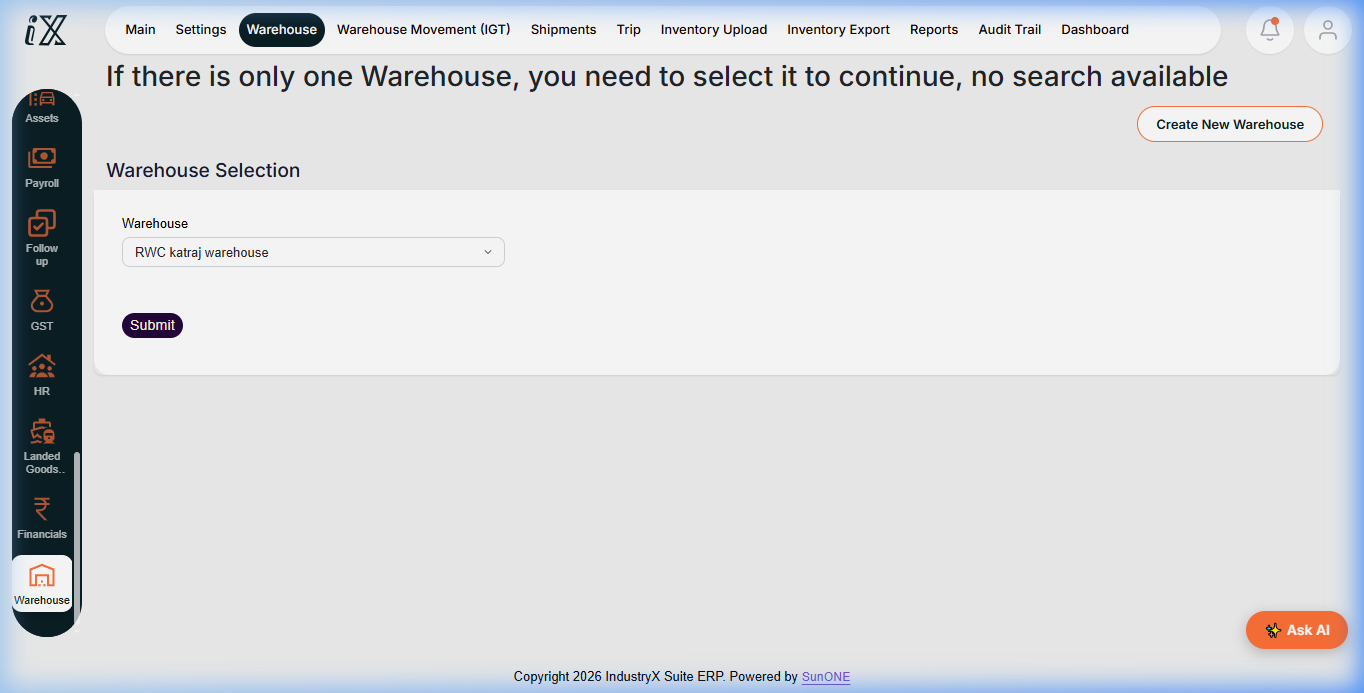
- On the Warehouse Selection screen, verify the assigned warehouse (e.g.,
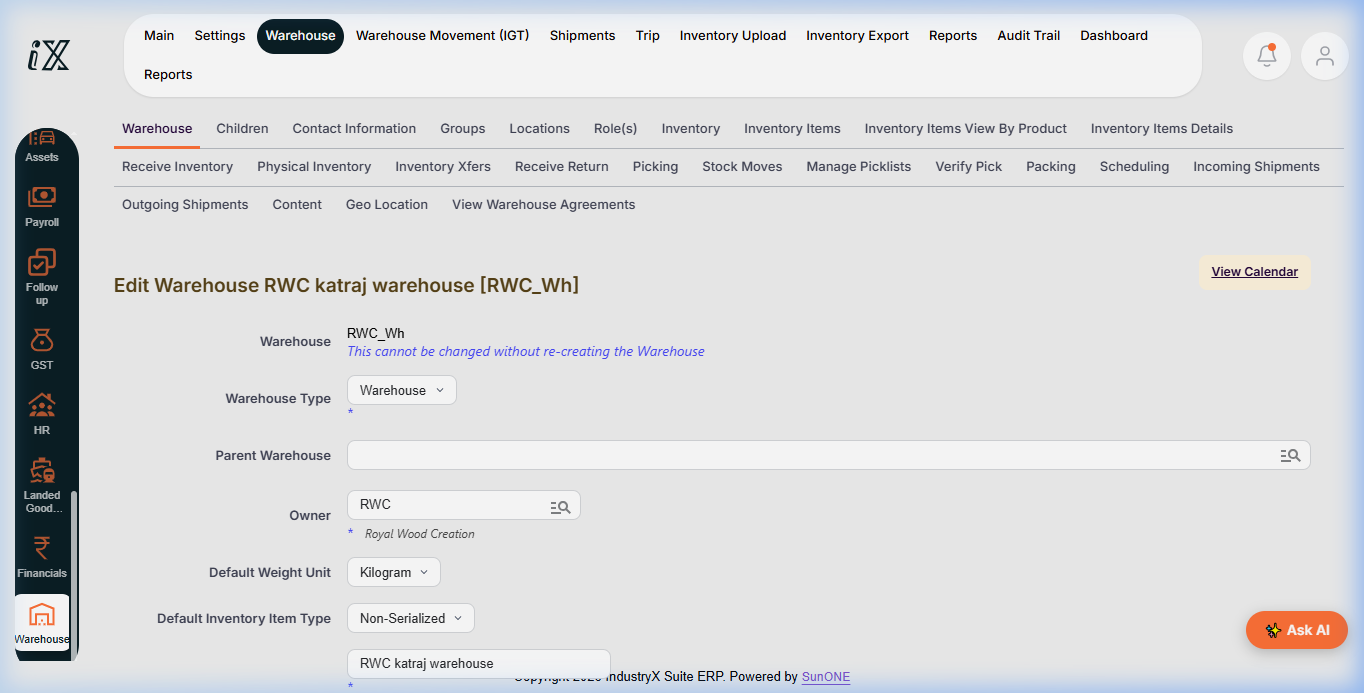
RWC katraj warehouse) and click Submit. - Inspect the Warehouse header details, verifying the facility identifier (
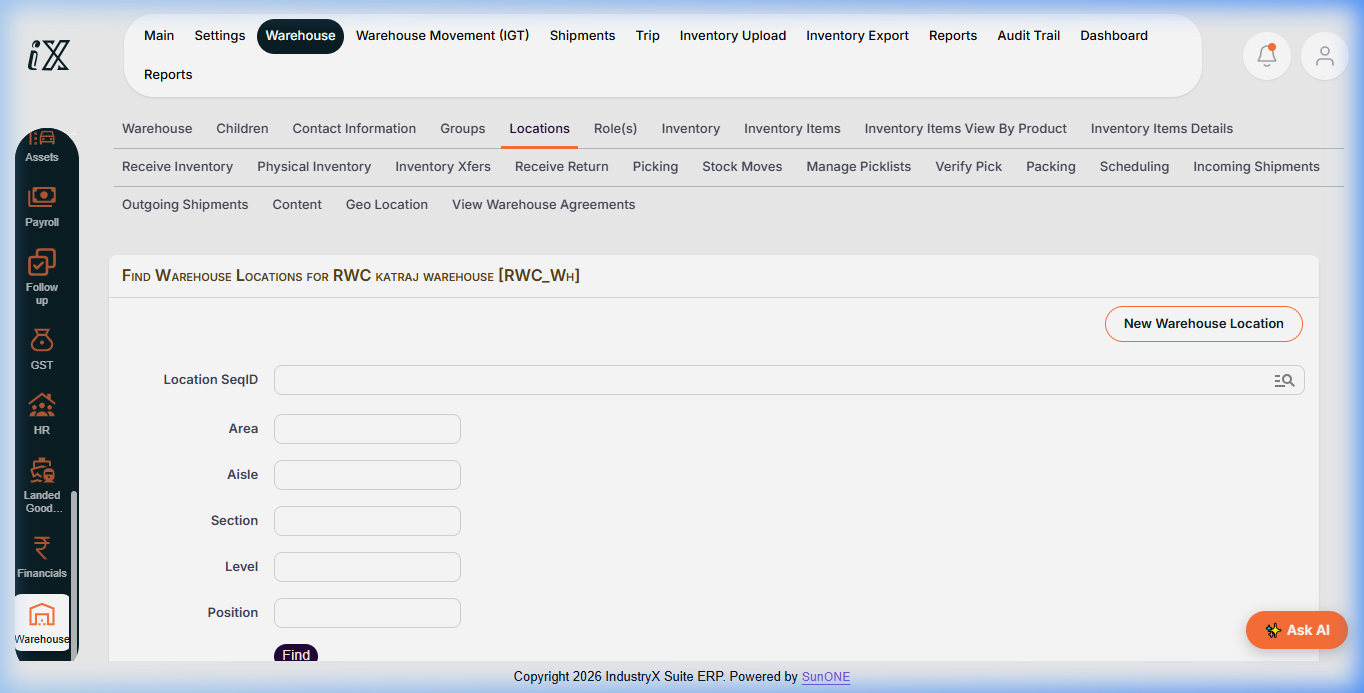
RWC_Wh), Facility Type (Warehouse), Owner, and Default Weight Unit. - Select the Locations tab from the warehouse sub-navigation bar.
- Review the location search criteria: Location SeqID, Area, Aisle, Section, Level, and Position.
- To add storage slots, click New Warehouse Location and configure the coordinate hierarchy according to physical layout rules.
- Confirm the facility and location are active and selectable for downstream procurement receiving and order fulfillment.
Expected result
The warehouse record and its storage location hierarchy are verified and operational without modifying active transaction balances.
Downstream effects
Inventory locations govern where received purchase items are put away and where sales fulfillment picks inventory. Master data setup does not generate stock movement ledger entries.
Related guides
Continue to 20000: Create a Purchase Requisition or review 18000 with screenshots.
Instructions
- Navigate to the Warehouse module and select the target facility from the dropdown.
- Click Submit to access the warehouse profile and configuration options.
- Verify warehouse attributes including owner, type, and unit parameters.
- Open the Locations tab to view existing location coordinates or define new storage slots.
Downstream effects
The verified facility and its storage bins provide the target locations for procurement receiving, cross-docking, and sales picking.
Related guides
Read text instructions or proceed to 20000: Create a Purchase Requisition.