
Purpose
Create a sample domestic supplier master record in MDM for downstream requisition, purchase order, goods receipt, and invoice scenarios, without altering existing vendor seed records.
Training example
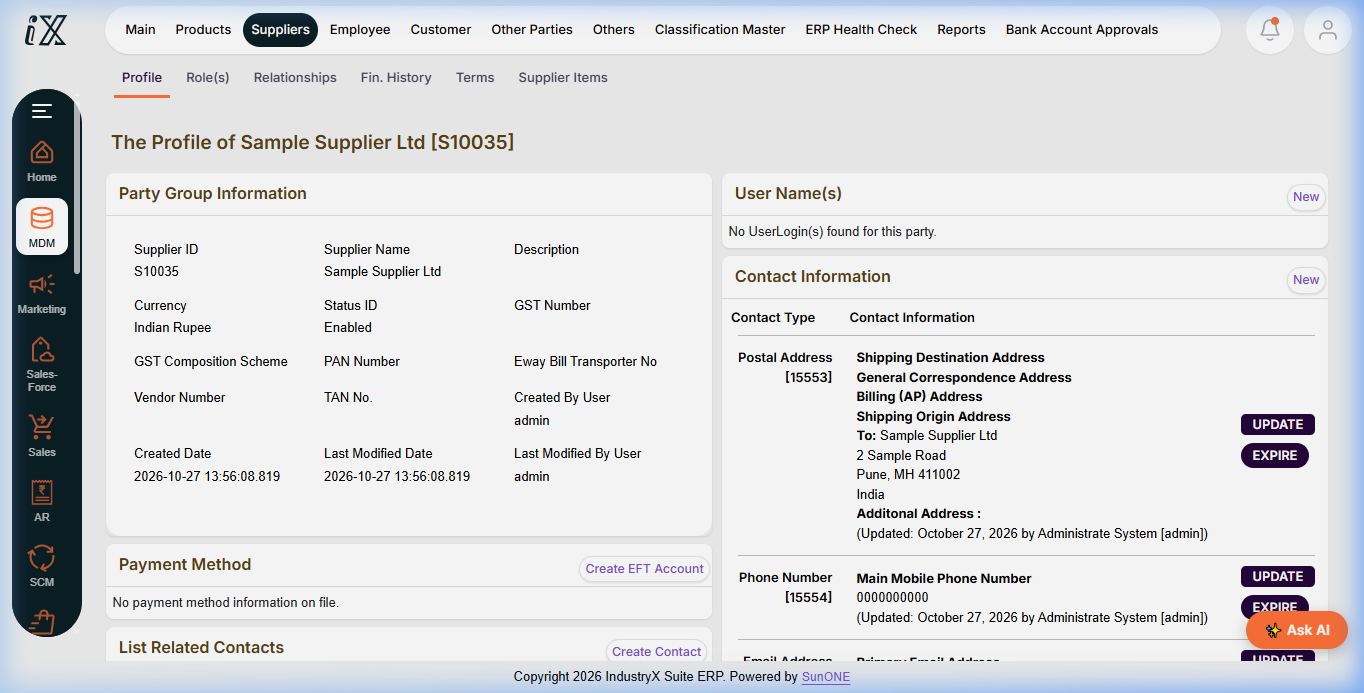
Supplier S10035, Sample Supplier Ltd; Division: Product; Currency: INR; Email: supplier@example.com; Address: 2 Sample Road, Pune, Maharashtra 411002, India; Mobile: +91 0000000000 (non-routable placeholder). Tax, transporter, vendor, MSME, and bank identifiers left blank.
Instructions
- Open MDM from the core module menu or sidebar.
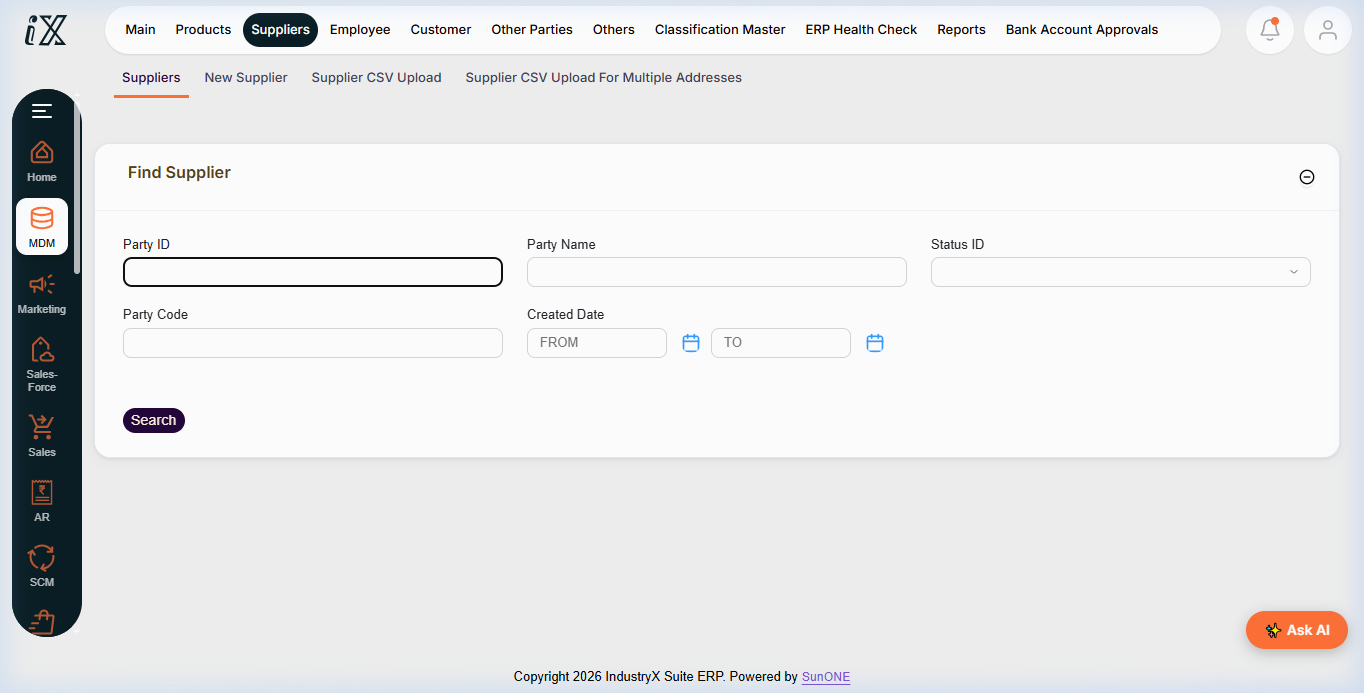
- Select Supplier, then search first for
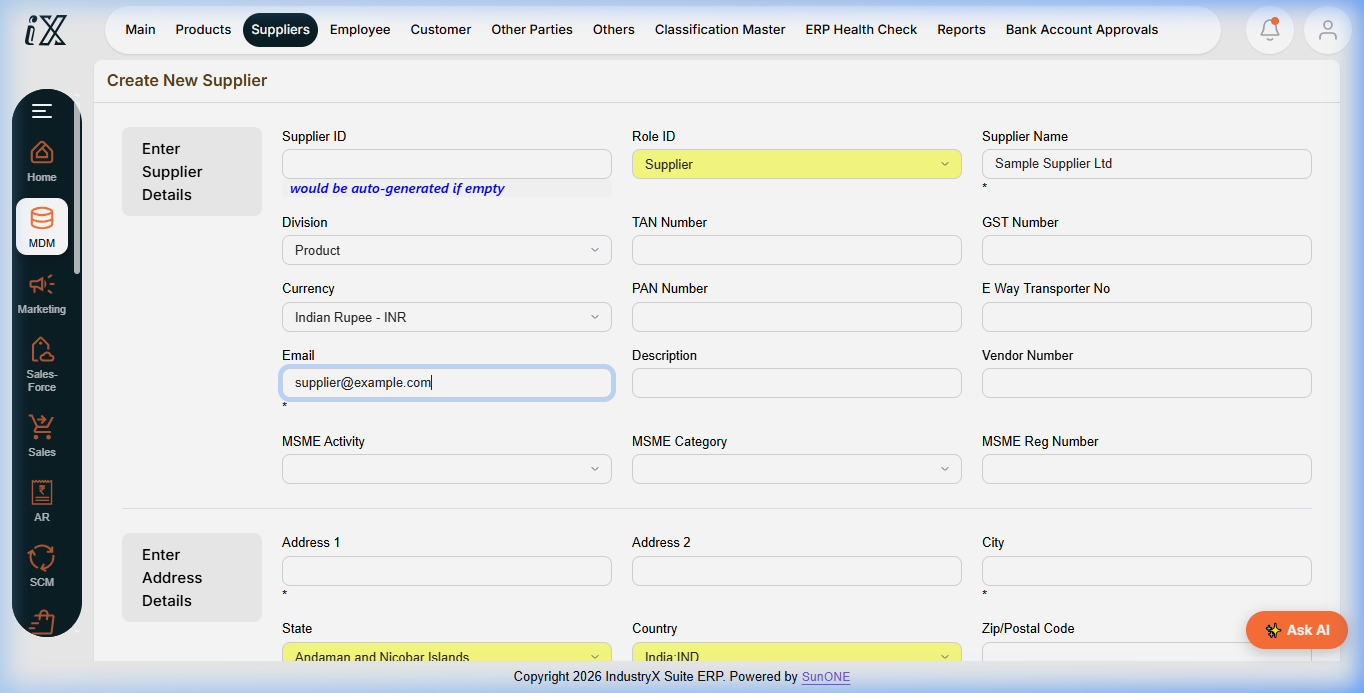
Sample Supplier Ltdto verify existing supplier records and avoid duplication. - Click New Supplier. Leave Supplier ID blank to enable auto-generation; verify Role ID remains
Supplier. - Enter Supplier Name:
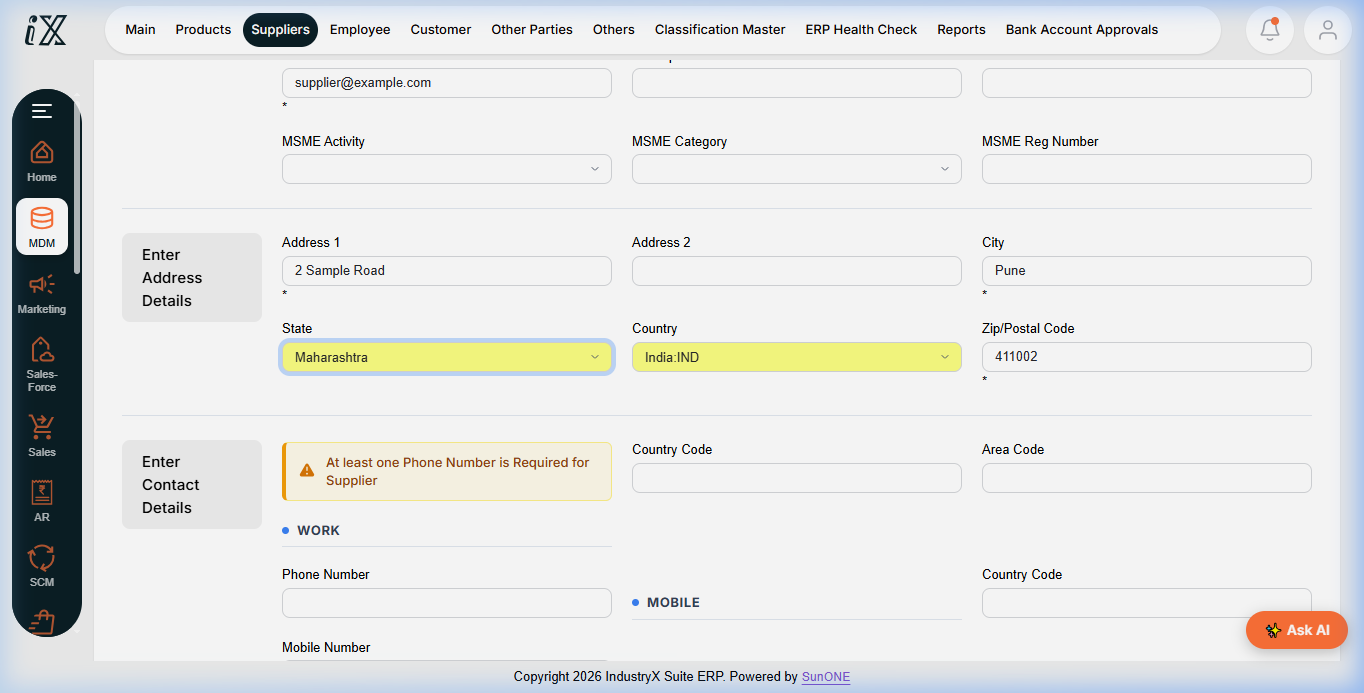
Sample Supplier Ltd. Set Division toProductand Currency toINR. - In the Address section, set Country to
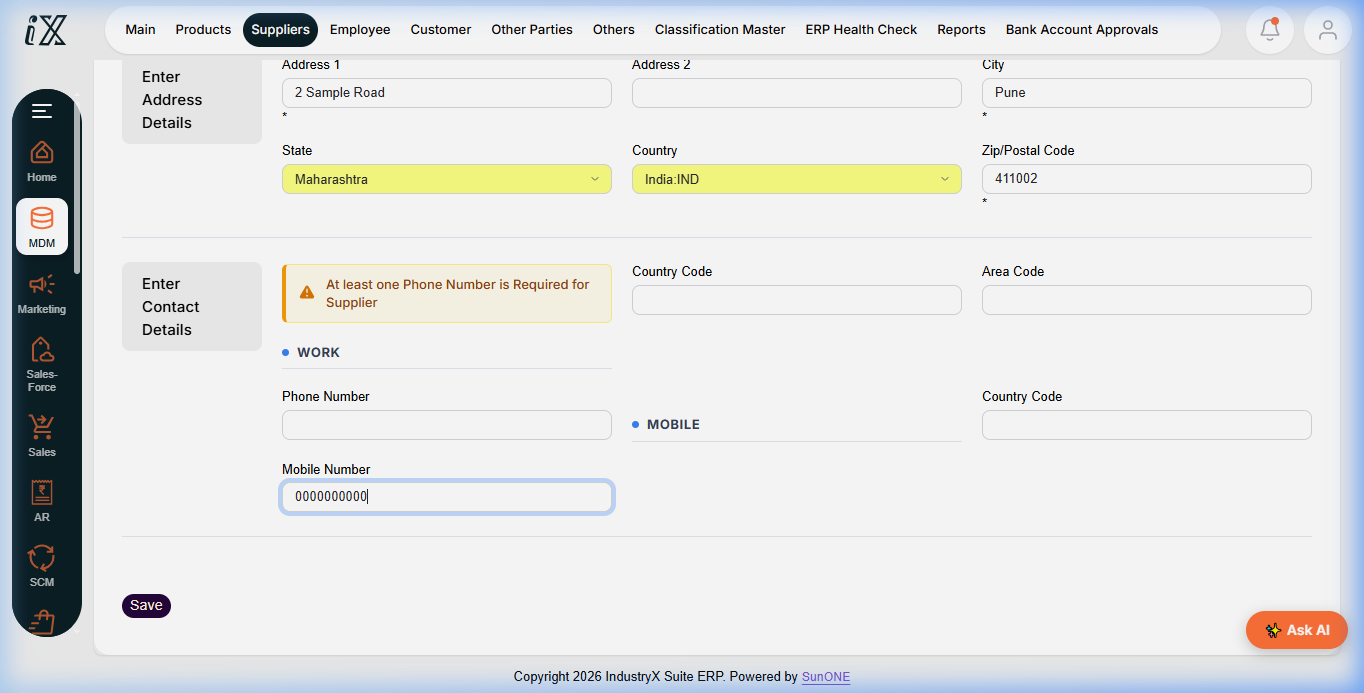
India, State toMaharashtra, City toPune, and Postal Code to411002with address line2 Sample Road. - In the Contact Information section, enter sample email
supplier@example.comand mobile number+91 0000000000. - Leave GST, PAN, TAN, E-Way Transporter, Vendor code, MSME, and Bank details blank. Never invent statutory numbers or live bank accounts.
- Click Save once. Confirm the created supplier record displays generated ID
S10035, Enabled status, INR currency, and the assigned Supplier role.
Expected result
Domestic supplier S10035 is saved with Enabled status, complete address, and contact methods. Existing supplier records remain unmodified.
Downstream effects
This supplier master is available for procurement requisitions, purchase orders, receipts, and vendor bills. No bank transfer or financial transaction is created by this master-data setup.
Related guides
Continue to 16000: Create a Product and Price or review 14000 with screenshots.
Instructions
- Open MDM and search existing suppliers to confirm records without altering seed data.
- Click New Supplier. Leave Supplier ID blank; Role ID remains
Supplier. - Enter sample supplier details:
Sample Supplier Ltd, DivisionProduct, CurrencyINR. - Enter address details with Country
Indiaand StateMaharashtra. - Enter contact details with sample email
supplier@example.comand placeholder mobile+91 0000000000. - Leave statutory and banking fields blank. Save once and verify the generated profile
S10035.
Demo record: Sample Supplier Ltd, generated ID S10035. Email supplier@example.com; 2 Sample Road, Pune, Maharashtra 411002; placeholder mobile +91 0000000000.
S10035.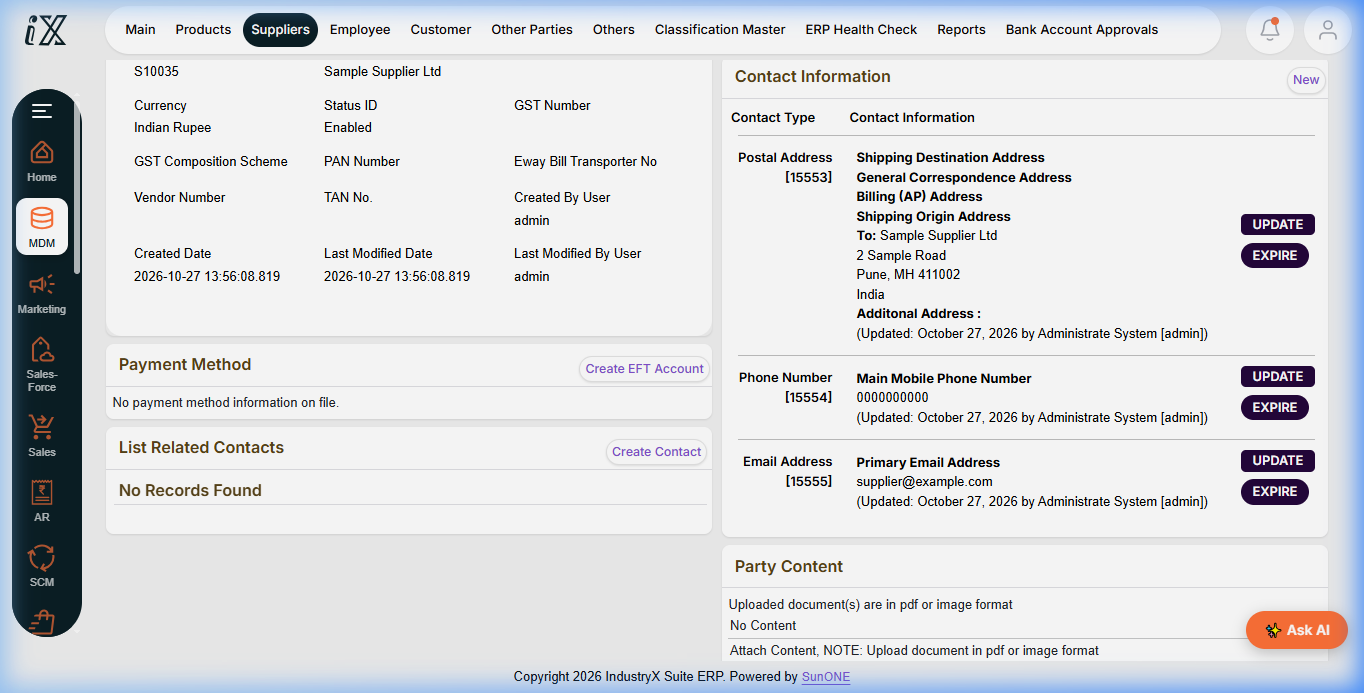
Downstream effects
The supplier master is available for requisitions, POs, and incoming invoices. No financial liability or payment is posted in this step.
Related guides
Read text instructions or proceed to 16000: Create a Product and Price.