
Purpose
Learn how stock is transferred between physical storage locations, bins, or sister warehouses in IndustryX Suite ERP: creating transfer requests, executing dispatches, and receiving goods at destination coordinates.
Instructions
- Navigate to Warehouse > Inventory Xfers for the originating warehouse (e.g.
RWC_Wh). - Use the Active only filter to review in-transit or pending transfers.
- Click Inventory Transfer to initiate a new internal transfer order.
- Select the Source Warehouse and specify the origin Location SeqID.
- Select the Destination Warehouse and target Location SeqID.
- Specify the Inventory Item or Product and input the quantity to move.
- Click Submit to create the transfer voucher.
- When goods arrive at the destination, click Complete Requested Transfers to acknowledge receipt and update destination stock ledgers.
Expected result
Source location stock decreases and destination location stock increases. Quantities on Hand (QOH) and Available to Promise (ATP) reflect real-time physical location.
Downstream effects
Inventory transfers balance stock availability across assembly work centers, production lines, and distribution fulfillment centers.
Related guides
Continue to 42000: Count and Adjust Inventory or view 40000 with screenshots.
Instructions
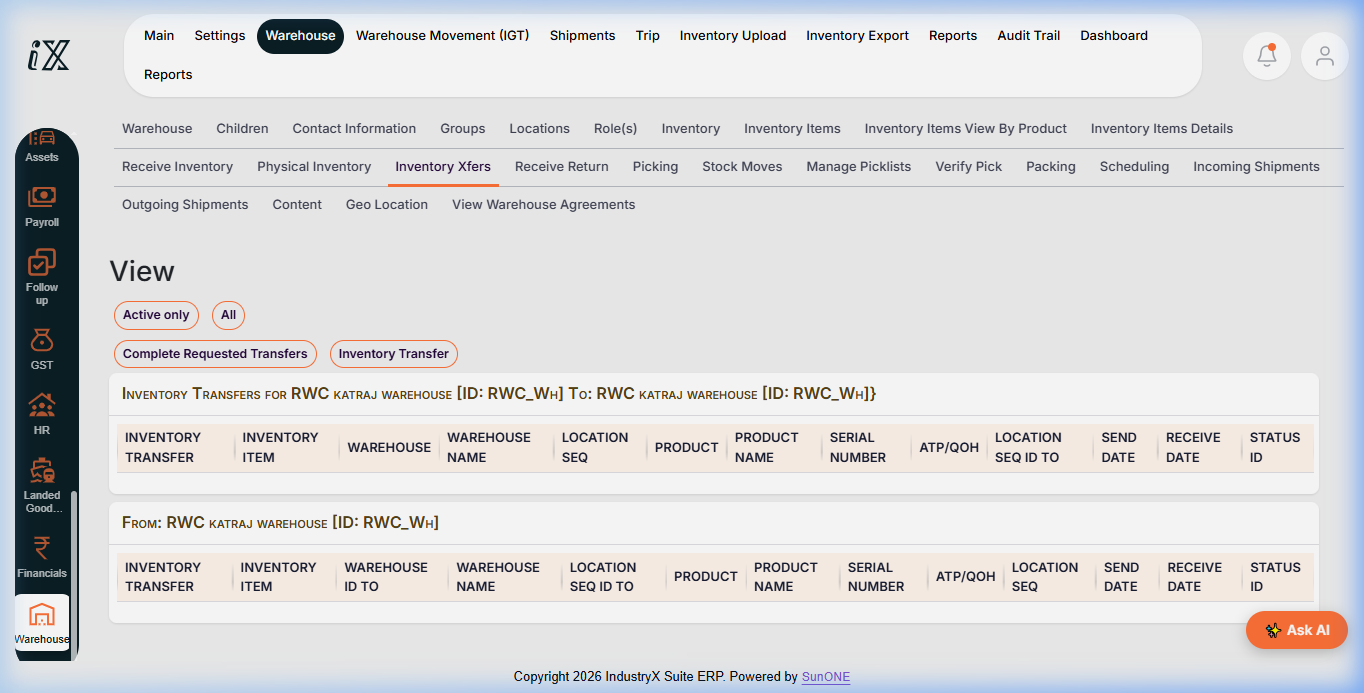
- Navigate to Warehouse > Inventory Xfers.
- Review inbound and outbound transfers between warehouse locations.
- Use Inventory Transfer to initiate relocation of stock items.
- Use Complete Requested Transfers to finalize stock movement at the destination.
Downstream effects
Stock transfers synchronize physical bin locations with ERP ledger balances without creating customer or vendor transactions.
Related guides
Read text instructions or proceed to 42000: Count and Adjust Inventory.