
Purpose
Learn how to establish cost baselines across WBS elements, submit project budgets for management approval, activate budget availability controls, and officially release the project for operational procurement and time logging.
Instructions
- Navigate to Project Manager > Find Projects and select the planned project.
- Click on the Budget or Financials sub-tab within the project workspace.
- Allocate approved budget figures to each WBS node broken down by cost category:
- Material & Procurement: ₹500,000
- Engineering & Labor: ₹250,000
- Subcontractor Services: ₹150,000
- Contingency Reserve: ₹50,000
- Confirm the Total Approved Budget (e.g. ₹950,000) and verify that the currency matches company operating currency (INR).
- Enable Budget Availability Control (BAC) with standard warning tolerance (80%) and hard error block tolerance (100%).
- Submit the budget plan for formal management authorization.
- As the authorized approver, review the budget summary and execute the formal Release Project action.
- Verify that the Project Status updates from
CreatedtoReleasedand that procurement and time entry fields become unblocked.
Expected result
The project achieves Released status with an immutable baseline budget and active availability control rules enforced against future commitments.
Downstream effects
A released project enables project purchase requisitions (68000), material issues, timesheet submissions (70000), and automated overrun prevention (72000).
Related guides
Review 64000: Network Activities and Milestones, proceed to 68000: Link Procurement to a Project, or view 66000 with screenshots.
Instructions
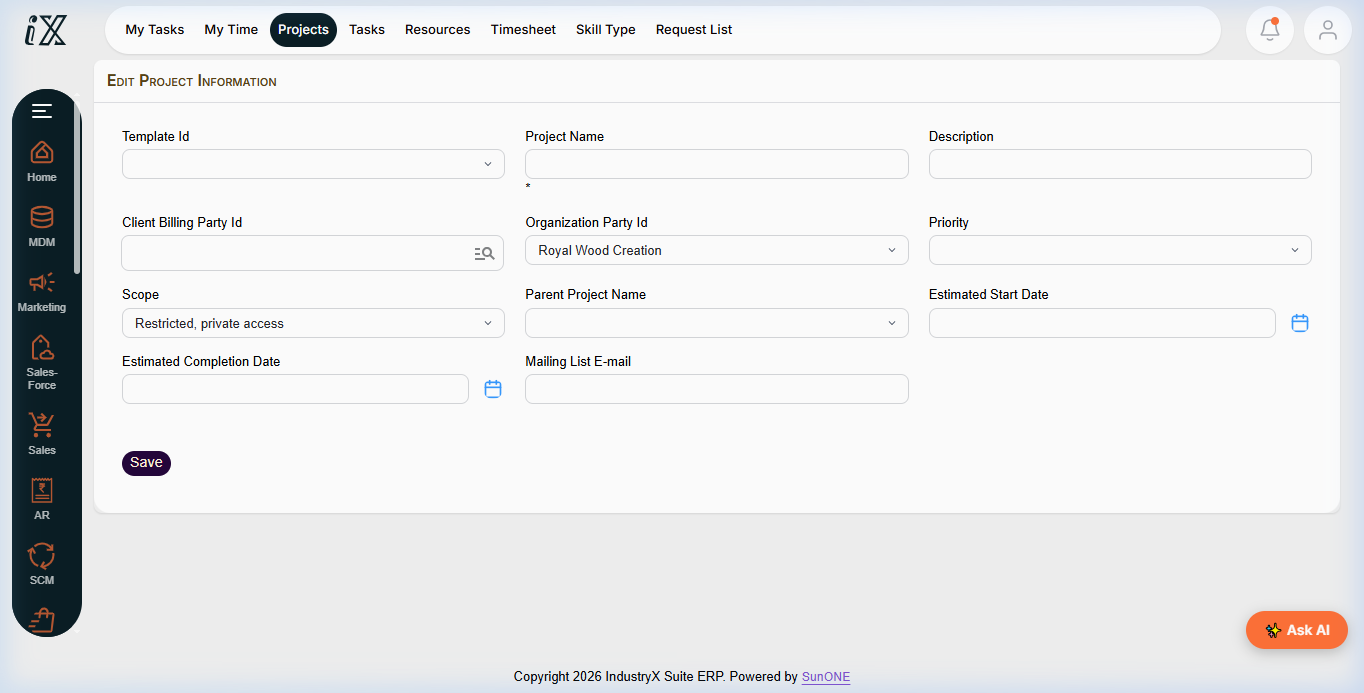
- Navigate to the project details screen and access the project financial and budgeting view.
- Input planned budget amounts across WBS elements and assigned cost categories.
- Configure budget tolerance thresholds (warning and hard block).
- Complete the official Release action to transition project status to active execution.
Downstream effects
Approved budget baselines form the governance foundation to prevent cost overruns and govern project procurement.
Related guides
Read text instructions or proceed to 68000: Link Procurement to a Project.